Admin Guide
Configuring environments
Environment configuration determines which Power Platform environments are included in governance, which require compliance checks, and which should be monitored for inactivity.
View environment list
After onboarding a tenant, Impliancy displays all discovered environments.
For each entry you can review:
- Name
- Type (PROD / Sandbox / Developer / etc.)
- Compliance status (see Configuring Compliance for more details)
- Owner/deputies
- Other environment details
Environment configuration options
Clicking on the eye icon () reveals more information about the selected environment. By clicking on the tab Preferences you'll see 3 options:
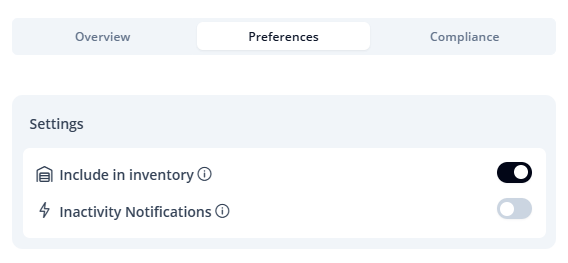
1. Include in inventory
- Enables artifact indexing for this environment
- When disabled, apps, flows, bots, and desktop flows are ignored and won't be visible in the overview table
- Common use case: exclude DEV environments
2. Compliance check
- Requires all artifacts in the environment to pass compliance
- Owners must complete compliance forms
- Useful for production and business-critical environments
3. Inactivity monitoring
- Detects unused artifacts
- Sends notifications to owners
- Supports follow up actions, including auto deletion
Example: recommended setup
- PROD: Inventory ON, Compliance ON, Inactivity ON
- Sandbox: Inventory ON, Compliance OFF, Inactivity ON (optional)
- DEV: Inventory OFF, Compliance OFF, Inactivity OFF
- Trial: Inventory ON (optional), Compliance OFF, Inactivity ON (optional)