Getting Started
Installation
This guide walks you through connecting a single Power Platform tenant to Impliancy and performing the initial inventory.
1. Sign into Impliancy
Open the Impliancy app under https://app.dev.impliancy.com/ and sign in with a Global Admin account.
2. Consent to Impliancy
Once logged in, a consent window appears that looks like this:
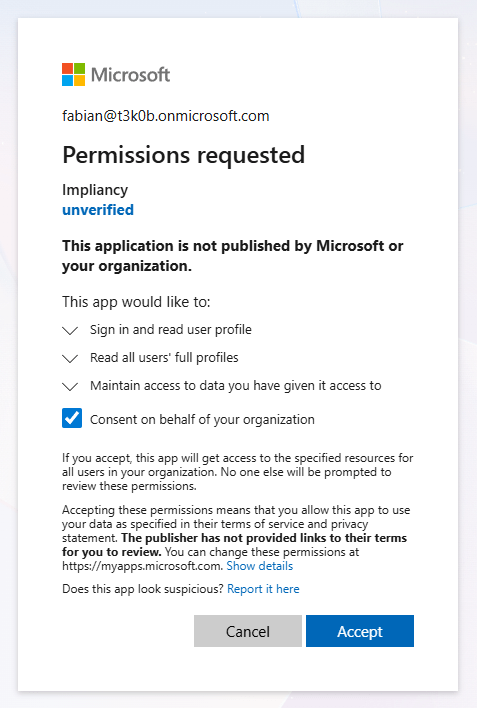
Make sure to check the Consent on behalf of your organization checkbox and click on Accept.
Impliancy validates the credentials immediately. Upon validation, the service principal (Impliancy App) will be created with the appropriate permissions to index environments. However, more permissions are required to index all artifacts.
Impliancy will detect environments automatically where permissions are missing.
3. Review environment settings
For each environment, you can now configure:
- Include in inventory (on/off)
- Inactivity monitoring (on/off)
- Compliance Check (on/off)
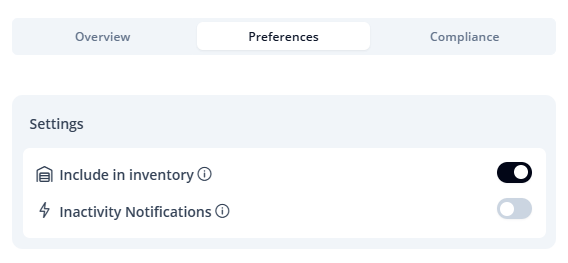
Our recommendation is to disable indexing for DEV or sandbox environments you do not want to track.
4. Confirm compliance settings
If compliance is enabled:
- Each artifact displays its compliance status
- Owners receive tasks to complete their compliance forms
- Forms follow your admin-defined rules, conditions, and approval logic
5. Confirm inactivity monitoring
If enabled:
- Impliancy detects inactive artifacts based on your configured threshold
- Owners receive notifications
- Optional auto delete actions can be configured